Choose a folder
Pick any project, archive, drive, or generated-images folder on your Mac.
TAKO · macOS · CREATOR TOOL
BetaBrowse every image and video across every subfolder—without importing, moving, tagging, or reorganizing a single file.
Explore documents too. Crop images, trim videos, make GIFs and Share Cards, and see your images in platform layouts—all from your existing folders.
Basic browsing for your first 100 media files is free · Beta Pass: US$1 for three months
01 — THE SIMPLE IDEA
A visual viewer for the folders you already haveTako turns a machine-readable file tree into one human-readable visual field. Your originals stay exactly where they are.
Pick any project, archive, drive, or generated-images folder on your Mac.
It scans every subfolder for images and videos while leaving the originals untouched.
Browse, search, preview, zoom, and reveal the original file in Finder.
02 — TWO MODES. ONE IDEA.
It doesn’t reorganize your world. It removes the structure blocking your view.
PROJECT MODE
Game art, photography, design archives, video libraries, AI image candidates—flatten every subfolder into one visual field.
Project → Assets → Visual inspection
TEMP MODE
Open Agent Temp or generated-images folders to rediscover intermediate, unused, forgotten, and unexpectedly good results.
Agent activity → Artifacts → Discovery
FIND OLDER WORK
Browse images and videos across a folder and its subfolders. Find earlier versions, unused exports and older work without opening each folder separately. Your files stay where they are.
REVIEW AI-GENERATED FILES
Point TAKO at a folder containing AI-generated images and videos. Browse the saved results visually, even when filenames are long IDs, and open the original file in Finder when you need it.
03 — BUILT TO DISAPPEAR
Browse images, animated GIFs, videos, PDFs and text documents together. Preview files with Quick Look and adjust thumbnail size to see more at once.
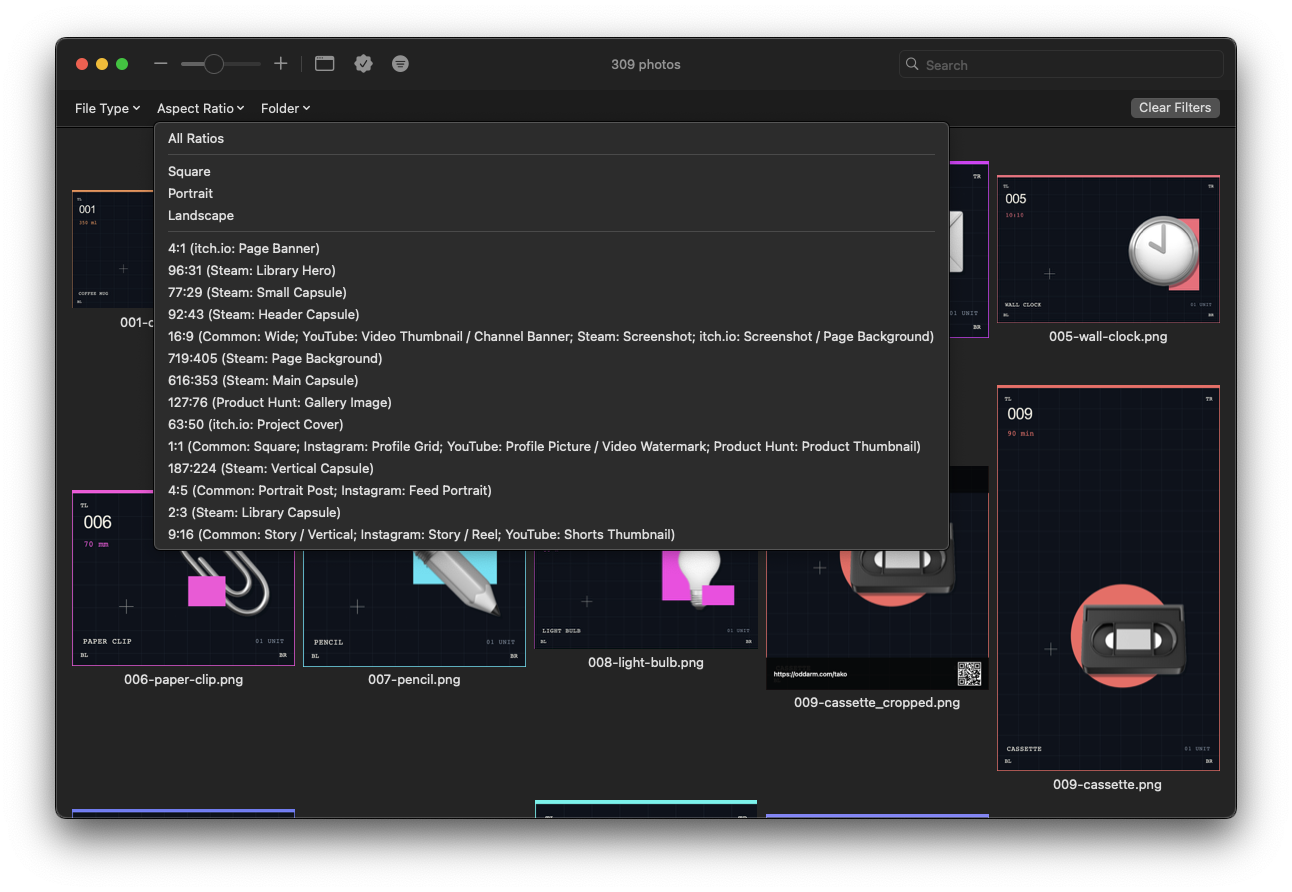
Choose a common or platform-specific aspect ratio, adjust the framing and zoom, then save a separate PNG. Your original stays untouched.
The layout is available to preview, but the functionality may not work yet.
Reframe your video and select the part you want to keep. Use the native trim controls or enter an exact duration, then save a separate MP4.
The layout is available to preview, but the functionality may not work yet.
Export a cropped and trimmed video as a looping animated GIF. Enter the maximum width and frame rate to suit where it’s going. GIFs have no audio.
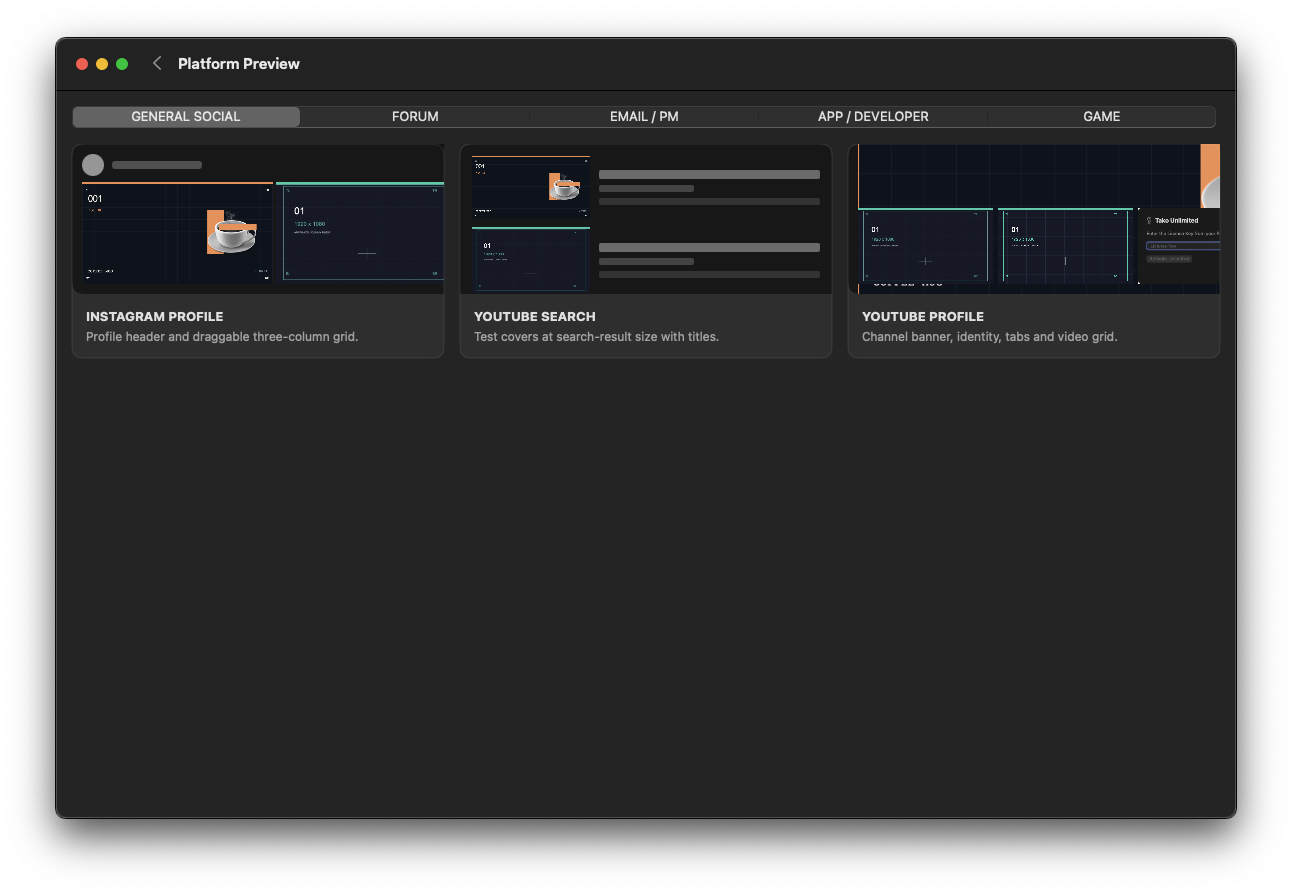
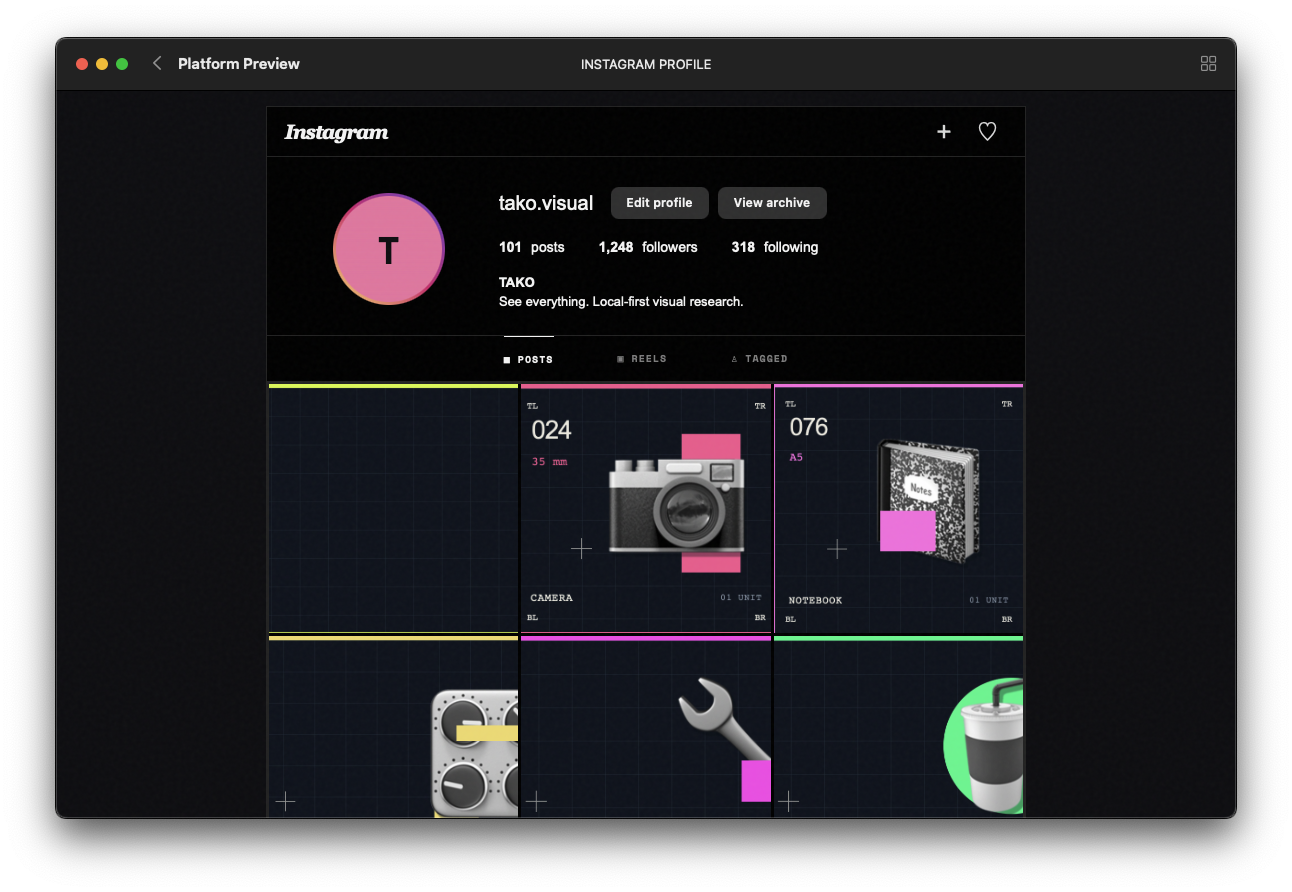
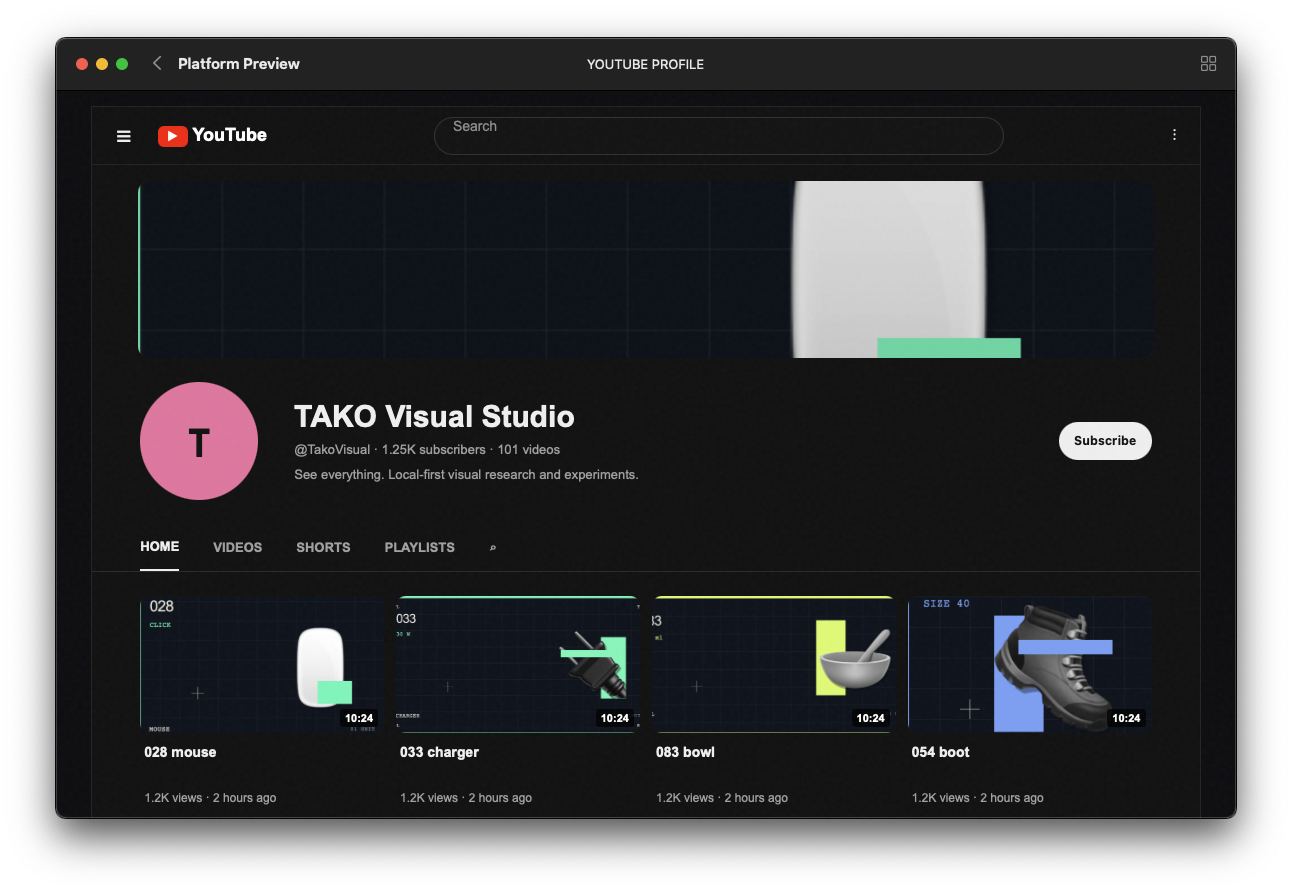
See your local images in simulated Instagram, YouTube, Product Hunt, Steam, itch.io, forum, email and message layouts. Compare how they look in context, without uploading or publishing.
Add an app logo and name, a website and QR code, or both to a cropped image. Enter your name and URL, preview the result, and save a separate PNG ready to share.
INSIDE THE APP
Real captures from the macOS app. Select a screenshot to take a closer look.
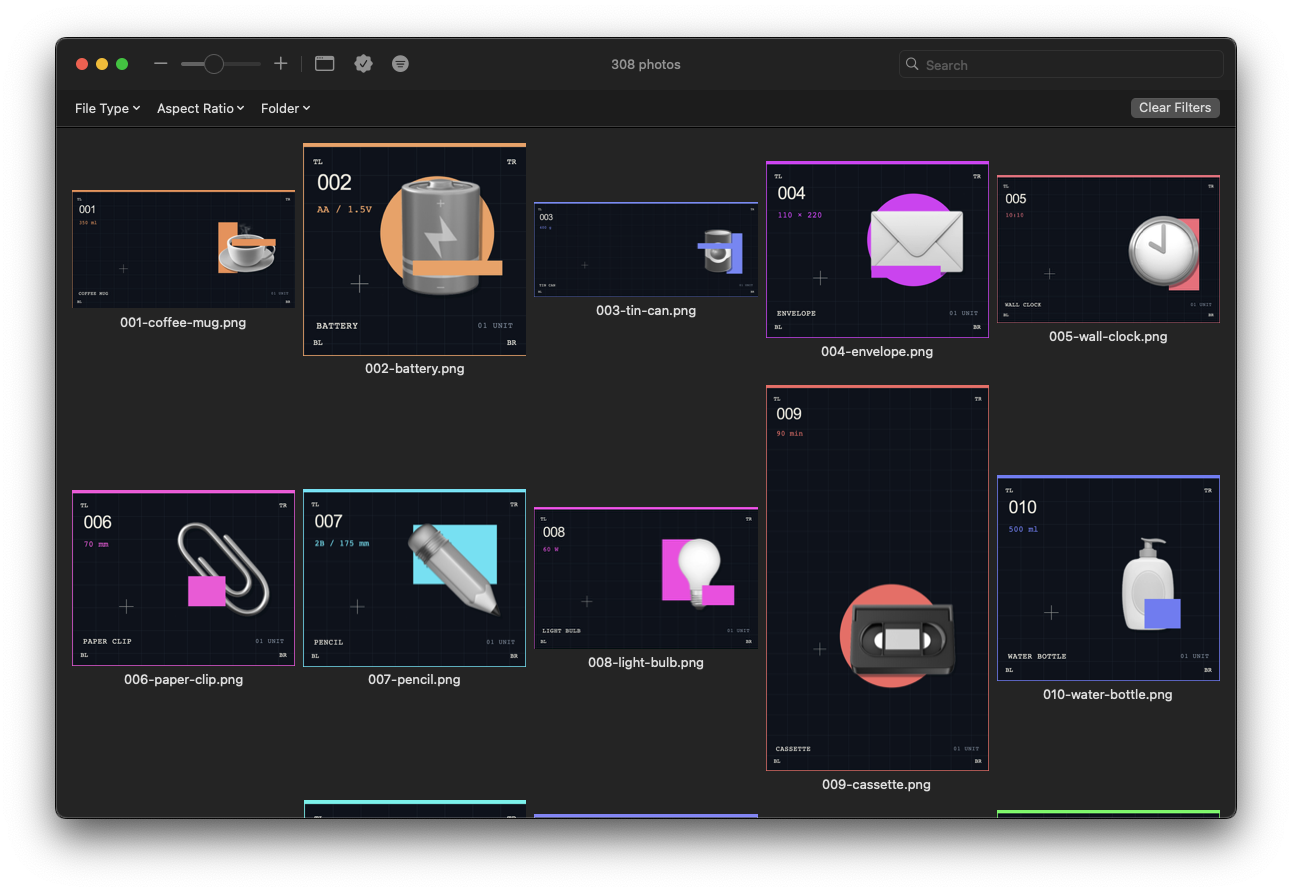 View larger ↗
Browse images from your folder and its subfolders in one gallery.
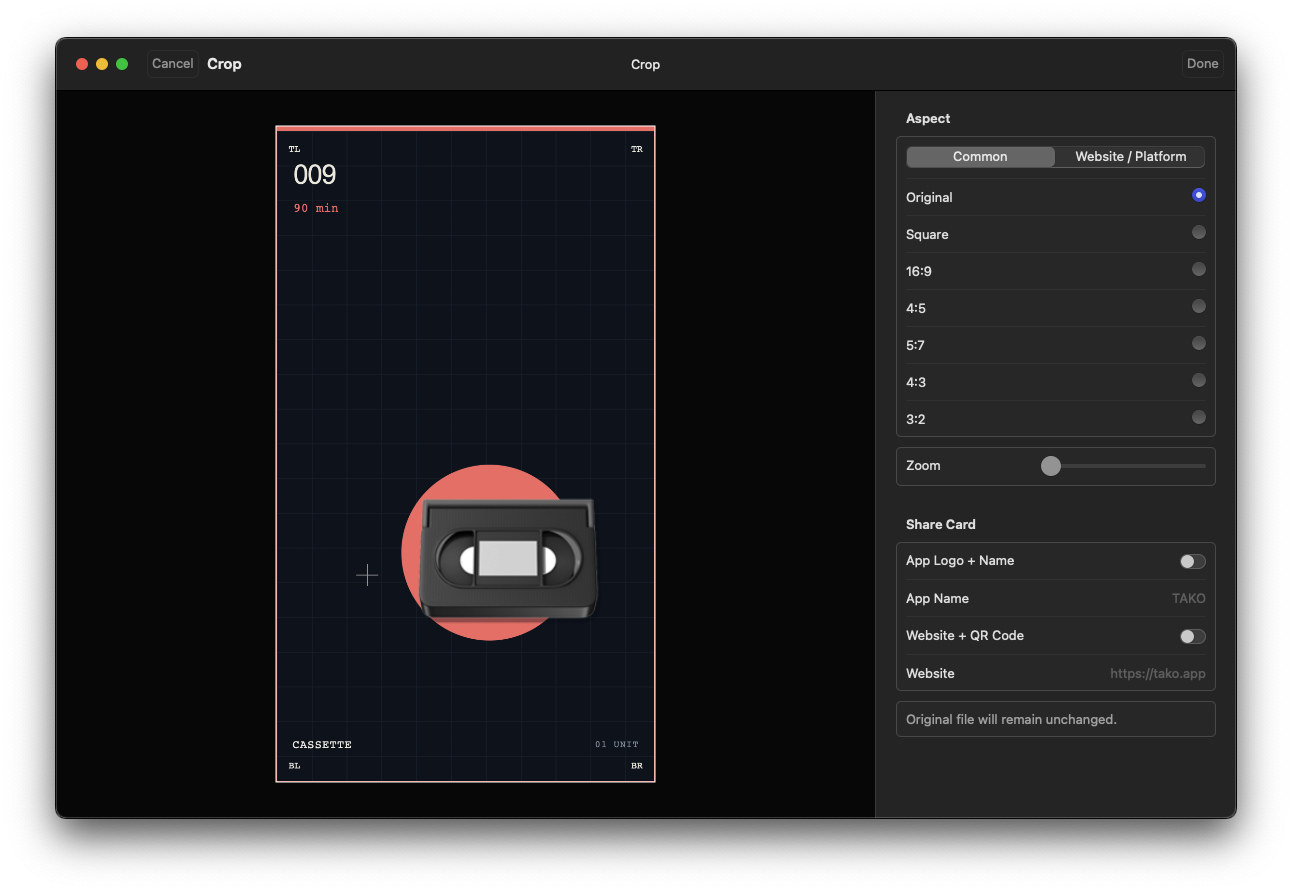 View larger ↗
Adjust the framing and save your cropped image as a separate file.
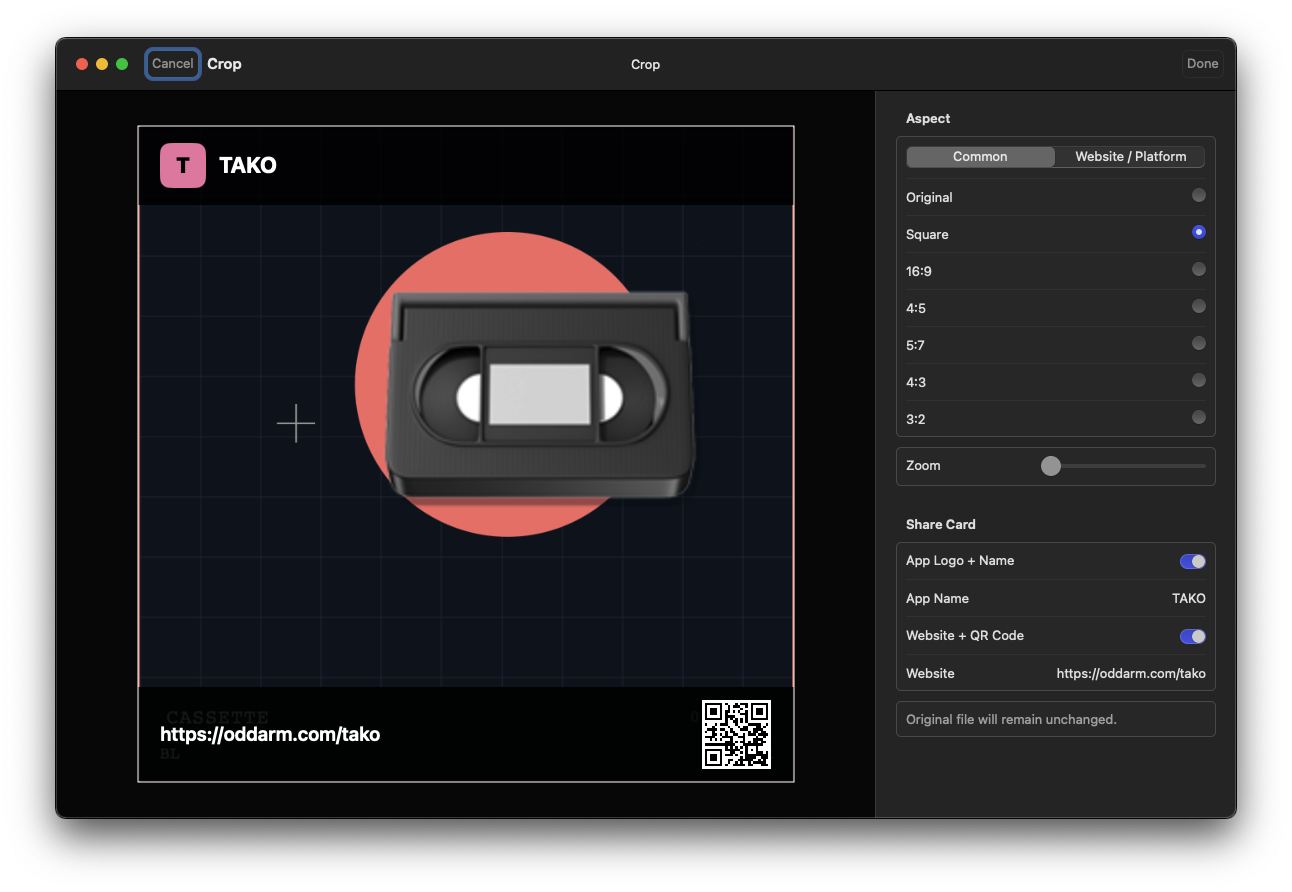 View larger ↗
Prepare a Share Card with a logo, website and QR code.
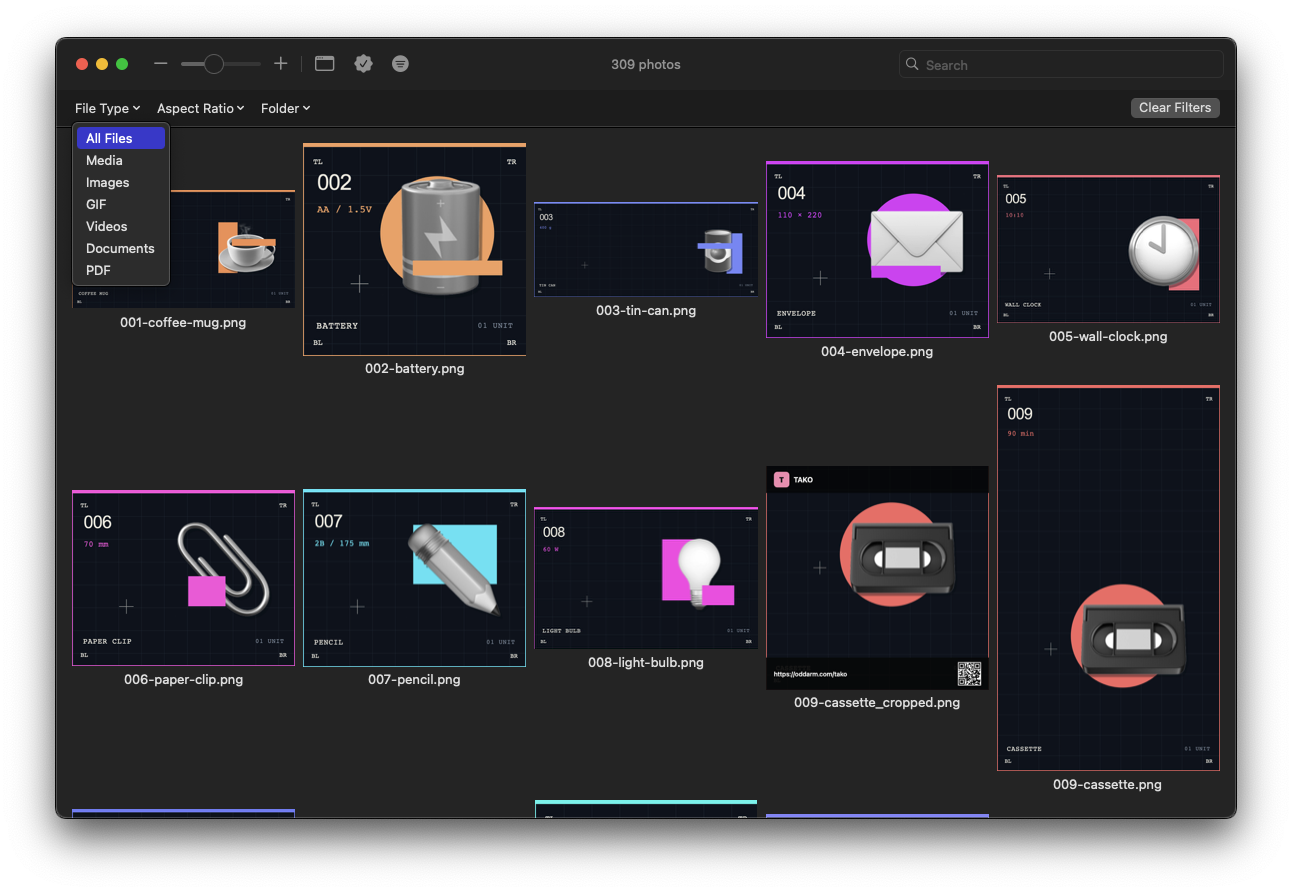 View larger ↗
Filter the gallery by file type.
 View larger ↗
Filter the gallery by aspect ratio.
 View larger ↗
Choose a platform layout for your image preview.
 View larger ↗
Preview your images in a simulated Instagram profile layout.
 View larger ↗
Preview your images in a simulated YouTube profile layout.
04 — TRY THE REAL THING
Browse your first 100 media files for free, with image viewing, zoom, Quick Look, thumbnail sizing and Reveal in Finder. When Tako finds more, you’ll see the real total—so you know exactly what’s waiting.
Try Tako for Mac ↗TAKO BETA PASS
US$1
Three months of beta access · One-time payment
First launch may require permission in macOS Privacy & Security. Read the first-launch steps ↓
This pass covers beta access only. It does not include a license for the full release.
TAKO is pre-release software. Please report any problems to help us improve it.
The full release is planned in approximately three months. You’ll keep your full three-month beta access even if it launches sooner.
05 — LOCAL MEANS LOCAL
Your folder remains the source of truth.
Tako observes. Your structure stays untouched.
The viewing experience runs against local files.
06 — QUESTIONS, ANSWERED
No. This pass covers beta access only. It does not include a license for the full release.
Your access starts when you first activate your license key in the app. Reinstalling TAKO or entering the key again does not restart this period.
No. US$1 is a one-time payment for three months of beta access with the TAKO Beta Pass. There is no subscription or automatic renewal.
Beta features are disabled and TAKO returns to the free version with a 100-media-file limit. Your files are preserved.
The full release is planned in approximately three months. Its launch will not shorten your three-month beta access period.
No. Tako reads media from the folder you choose. The originals remain in their existing locations.
Yes. Paste an absolute folder path into Tako’s address/search field and press Enter.
No. It shows supported visual artifacts that still exist inside the local folder you choose. It cannot read hidden thoughts, deleted work, or activity that was never saved there.
No. Image crops and Share Cards are saved as separate PNGs. Edited videos and animated GIFs are saved as new files, leaving the original media untouched.
No. It shows your local images inside simulated platform layouts in Tako. It does not upload your media or publish posts.
TAKO FOR MAC
Point Tako at one. See everything inside.
macOS · Local-first · Free basic browsing up to 100 media files
The current beta uses ad-hoc signing and is not notarized by Apple. macOS may block the first launch because Apple cannot verify it for malicious software. The app may appear as “Tako Payhip Test” in the alert.
Only continue if you downloaded TAKO from our Payhip link and trust the source.
Button wording varies by macOS version. Once approved, macOS remembers the exception for this app. If the alert says the app will damage your computer or is damaged, stop and consult Apple’s guidance instead.
Apple’s guide to opening apps safely ↗When the macOS permission prompt appears, enter your Mac login password and click Allow so TAKO can access and verify your purchased license.
If you click Deny, TAKO cannot restore your Unlimited access and remains in Free mode. You can click Done to continue using the free features.
To retry, quit and reopen TAKO, then enter your Mac login password and click Allow when the macOS prompt appears.